Ad Here

Showing posts with label COMPUTING. Show all posts

Wednesday, August 14, 2013

Change your keyboard buttons as your sweet-well

We all have to type often in pc, laptops, notebooks etc . Sometimes some buttons may not work or the have been broken . For that we have to buy new keyboards . But when using a notebook or laptops it is not easy to replace a new keyboard . We can easily avoid this problem if we can apply some tricks . We do not use all the keyboard buttons usually . We can replace our necessary buttons to those unnecessary buttons.


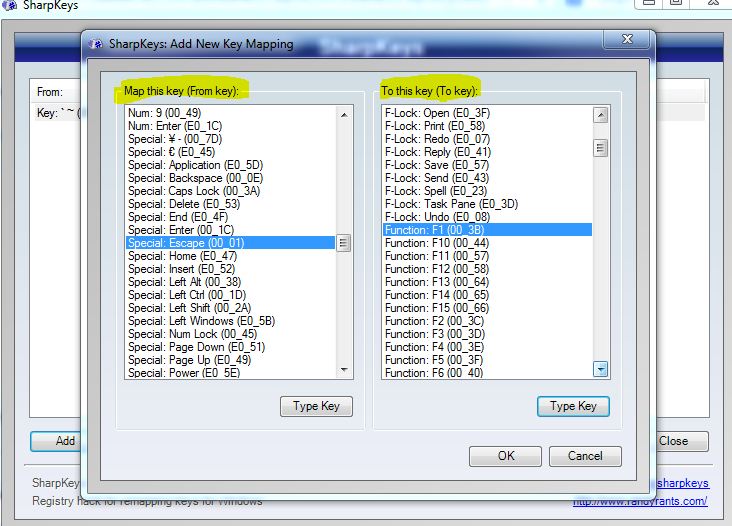
For that we need a software . Don't worry it's only 500kb soft. Download it from here : http://www.randyrants.com/sharpkeys3.msi Now install it and open it .You will find a interface like this :

  
Ok now we have to select the key which have to be replace . For that we need to click the add button . For example if we want to replace the Escape button to F1 now have to to select Escape from "Map this key" option and F1 from "to this key " option . Now click ok . For more details see the picture at below :


Now click on "write to registry and click ok . Now restart your pc and see magic . If you press F1 it will work as Escape . For resetting your keys delete all the changes from sharpkey soft . That's it . Actually sharpkey is a keyboard mapping tool . It edits registry according to your wants and changes the behavior of the keys .

If you like this post than keep connected with www.webunbound.blogspot.com . Thanks for staying with us . We hope we will provide better articles in future time .

Sunday, May 26, 2013

DVD drive disappered in Windows 8 . Get it back now

I have recently installed Windows 8 . Before installing windows 8 I used windows 7 . Everything was alright with windows 7 . But after installing windows 8 I faced so many problems . On of the major problem is that my DVD drive was totally disappeared after reboot . Then I searched in Google why my DVD drive was disappeared . I saw in Google search results that many of windows 8 users are facing this problem . Then I searched it's solution on Google and fixed the problem . I think new windows 8 users will also face this problem . For that I am giving the solution how to get your DVD drive back .

 First open COMMEND PROMPT in administrator mode . For opening COMMAND PROMPT in administrator mode first click on the search from start menu . Then all your apps will be appeared . Find out the COMMAND PROMPT followed by the category Windows System . Click on the COMMAND PROMPT with right click of your mouse . Then some options will appear . There you will find a option named Run as administrator . Click on it . Then your COMMAND PROMPT will start as administrator . If you did everything as I said then we ready to go on next step .

Then copy the following code given below .

reg.exe add "HKLM\System\CurrentControlSet\Services\atapi\Controller0" /f /v EnumDevice1 /t REG_DWORD /d 0x00000001

Now paste it on COMMAND PROMPT and hit enter . If everything is OK then you should see a message like this .

Your operation is completed successfully .

If you have seen a message like this then close the close the COMMAND PROMPT and reboot your computer . That's it . Now see your DVD drive is back .

Thanks for reading this article . If you have liked this article then please comment . If you want more posts than be connected .

Tuesday, May 21, 2013

Enable .NET 3.0 in Windows 8 ( Offline and Online )

Windows is the most popular and used operating system worldwide . Because it has a user-friendly graphical user interface . Windows was first introduced in 1995 . Science 1995 Microsoft has published so many versions of windows like windows98, windows XP, windows Vista, windows 7 and windows 8 . Windows 8 is the latest version of windows . But it has some problems . On of the major problem is that Windows 8 has been made with .NET framework 4.5 . But a lot of necessary software has been built based on .NET 3 and 3.5 framework . So these are not supported by Windows 8 . But you can still use .NET 3 in windows 8 . There are two methods . They are offline and online . I will show you both of them .


1) Enable .NET 3 in offline .

 For this operation we need a DVD of windows 8 .  Put the windows 8 DVD on the DVD drive . First open the CMD prompt  in administrator mode .Otherwise it will show access denied . For  opening the CMD prompt in administrator mode click on the search from the start menu . Then all the program will be shown there . You will see a program named "COMMAND PROMPT" . Do a right click of mouse on it . Then some options will be shown on the bottom . There you will find a option called "Run as Administrator". Click on it . That's it . You have successfully open the COMMAND PROMPT in administrator mode . Now copy the following code and paste it into the COMMAND PROMPT .

dism.exe /online /enable-feature /featurename:NetFx3 /All /Source:H:\sources\sxs /LimitAccess

Note that the Source:H:\sources must be according to your DVD drive letter . IF your DVD drive letter is F then the code should look like this

dism.exe /online /enable-feature /featurename:NetFx3 /All /Source:F:\sources\sxs /LimitAccess

Now paste it into the COMMAND PROMPT and hit enter . It will take a few minutes . It show you that it has been completed . Now reboot your PC and enjoy the .NET 3.

1) Enable .NET 3 in online .
For this  operation we do not need anything without internet connection . First go to

SETTINGS>CONTROL PANEL>PROGRAMS AND FEATURES >Turn windows features on or off .

Then you will find a box like this .


Click on the following box and click OK .

Then it will download the necessary files from the internet . After the completing the operation reboot your PC and enjoy . That's it .

Thanks for reading this article . If you liked this  article then please comment . Want more like this .Then be connected witt www.webunbound.blogspot.com .

Thanks.